Screen behaviors
A screen can be switched off and on, lose its vertical hold, pick up interference, and take damage, all from script during play. Each screen keeps its own state, so two screens showing one session can differ. The session keeps running underneath and keeps the keyboard.
screen.PowerOff(); // collapse to a line, a dot, then darkscreen.PowerOn(); // warm up and open into the picturescreen.PowerCycle(); // off, dark for a moment, and back onscreen.LoseVerticalHold(0.6f); // roll, in pictures a secondscreen.RecoverVerticalHold(0.5f); // roll on into lock over half a secondscreen.Signal = SignalCondition.Noisy(0.1f);screen.Glitch(0.3f, 0.8f); // a burst: seconds, strengthscreen.Damage(uv, 0.6f); // crack the panel at a UVscreen.Repair();Outside Play mode the edit-time preview shows every screen switched on and undisturbed.
The clips on this page flash.
PowerOff() and PowerOn() switch a screen with the transition its screen
type names under Power:
| Power Style | Off | On |
|---|---|---|
| Tube | The picture falls to a bright line, the line draws in to a dot, and the dot fades | The line opens into the picture while the brightness comes up and settles |
| Fade | The picture fades out | The picture fades in |
| Cut | Instant | Instant |
Power On Seconds and Power Off Seconds set the durations. Pass true
to either call to cut at once. A screen with no screen type cuts.
A screen that is off stays dark until PowerOn(). Turn off Start Powered
On on the screen for one that starts dark.
screen.IsPoweredOn; // true when on or switching onscreen.PowerState; // Off, PoweringOn, On, or PoweringOffscreen.PowerChanged += on => { }; // the transition finishedTo stop typing into a session whose screen is off, set
session.AcceptsKeyboard = false.
Vertical hold
Section titled “Vertical hold”LoseVerticalHold(speed) rolls the picture at speed pictures a second,
with the blanking bar between frames. Positive rolls upward, negative
downward, and zero holds the picture where it is.
RecoverVerticalHold() snaps the picture back into lock.
RecoverVerticalHold(seconds) lets it roll on to the next frame and settle
over that time. RollOnce(seconds) rolls through one frame and locks again.
screen.HasVerticalHold;screen.VerticalRollSpeed;screen.VerticalHoldRecovered += () => { };The signal
Section titled “The signal”A screen has three kinds of state: what it is, the screen type; what it
receives, the signal; and what it is doing, the power and vertical hold above
and the damage below. Signal is a SignalCondition: the state of the
signal arriving at the set, each kind of trouble from 0 to 1. Set it and it
stays. It is also on the screen in the Inspector.
Interference gets into an otherwise good signal:
| Field | Shows as |
|---|---|
tearing |
Bands of the picture pulled sideways |
jitter |
Scanlines shaking sideways |
noise |
Static mixed into the picture, all the time |
chroma |
Red and blue pulled apart |
luma |
Brightness dips and a hum bar |
frequency |
How much of the time the tearing, jitter, chroma, and luma show: near 0 is an occasional flicker, 1 is constant |
Scrambling is a signal the set has no key for:
| Field | Shows as |
|---|---|
scramble |
The signal’s sync lifted into the picture. Bands of lines lose their sync as it rises: the first tears at about 0.3, half the picture past 0.6, and toward the top the picture rolls and the blanking shows as a bright bar |
scrambleColor |
How far the set shows color once the burst is lost: 0 drops to black and white, 1 keeps the color with its hue drifting along the tears |
A worn tape, and the deck playing it:
| Field | Shows as |
|---|---|
tape |
The wear: the picture softens, the color bleeds to the right and arrives late, a faint ghost sits beside it, dots crawl along the color edges, each line starts a little off, a streaky grain comes up, and the heads switch along the bottom edge |
tracking |
A thick band of static and torn lines drifting up the picture, as a crease or a deck off its track |
dropouts |
White streaks with a bright head, where the tape has shed its oxide |
A digital stream in trouble, in blocks of eight grid pixels:
| Field | Shows as |
|---|---|
compression |
Each block pulled toward its average, with its colors in steps |
corruption |
Bands of blocks slid sideways, and blocks filled from elsewhere in the picture in the wrong colors, each for a few ticks |
The scramble is a television receiving a signal whose sync pulses the scrambler lifted into the picture. Its sync separator slices relative to the lowest level it finds, so it triggers on the darkest picture content instead, and its line and field oscillators follow those triggers: the tears, the roll, the bright bar, the drifting hue, and the brightness pumping all follow from that, and from the picture the screen shows, so they change as it does.
Presets
Section titled “Presets”SignalCondition.Clean is a clean signal. SignalCondition.Noisy(level)
sets every kind of interference to one value, showing that share of the
time: 0.05 is an occasional flicker, and 1 is a badly broken signal.
SignalCondition.Scrambled(level) scrambles alone, with the color at the
same level, and Scrambled(level, color) sets both.
SignalCondition.Vhs(level) is a worn tape at the level, its tracking and
dropouts a little under it; SignalCondition.Compressed(level) a stream
compressed at the level and corrupted under it.
SignalCondition.Burst(strength) is the mix a glitch is made of. Each is a
plain value: start from one and change a field.
screen.Signal = SignalCondition.Scrambled(0.8f);var rough = SignalCondition.Noisy(0.1f);rough.noise = 0.3f;screen.Signal = rough;A SignalCue plays a condition over the signal for a while and leaves the
signal as set. Its level follows an envelope: it rises over attack, falls
over decay to sustain, holds there for hold, and falls to nothing over
release. blend says how the cue combines with what is under it: Max
takes the worse of each kind, Add adds them, and Replace crossfades to
the cue’s condition. modulation wobbles the level on top: a slow wave at
rate cycles a second dipping by depth, with harmonics partials above
it, each a little off its rate, and a slower wave at fmRate bending the
phase by fmDepth, so the wobble never quite repeats.
var cue = screen.Play(new SignalCue{ condition = SignalCondition.Noisy(0.5f), attack = 1f, hold = 1.5f, release = 1f,});cue.Ended += () => { };screen.Stop(cue); // starts the release nowscreen.StopCues(); // every cuescreen.Cues; // the cues playing, oldest firstGlitch(duration, strength) plays a burst: a Max cue of
SignalCondition.Burst(strength) that ends after duration, with
IsGlitching true meanwhile and GlitchEnded raised at the end.
Receive(condition, seconds) plays a Replace cue of the condition for
that long; with zero seconds it sets Signal instead.
screen.Glitch(0.3f, 0.8f);screen.Receive(SignalCondition.Scrambled(0.6f), 5f);Everything stacks: a tube’s settings, a scrambled signal, a burst over it, and the damage below draw on one screen.
Resetting
Section titled “Resetting”ResetBehaviors() puts the screen right at once: switched on, the picture
locked, a clean signal with every cue over, and the damage repaired.
Damage
Section titled “Damage”Damage(uv, severity) cracks the panel at a UV on the screen, the kind
UvToCell takes, with a severity from 0 to 1. The impact crushes a point
and sends a few long cracks curving out from it, with an arc or two across
them. The cracks cut the panel’s driver lines, so each region they bound
fails its own way: dead, dead with its lines stuck in their colors, the
picture with stuck lines over it, or untouched. The stuck lines are the
panel’s own, one grid pixel wide. Severity sets how many cracks there are,
how far they reach, and how many regions fail. That is how a panel fails;
on a screen type with damageLines off, only the glass cracks and the
picture shows through whole, as on a tube. The CRT presets have it off.
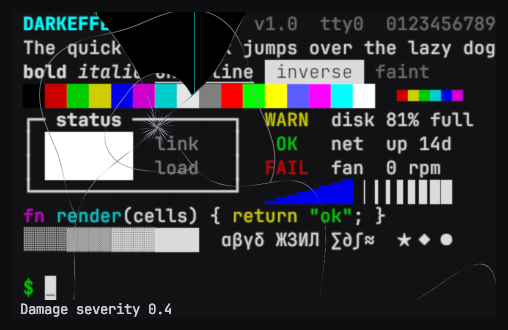
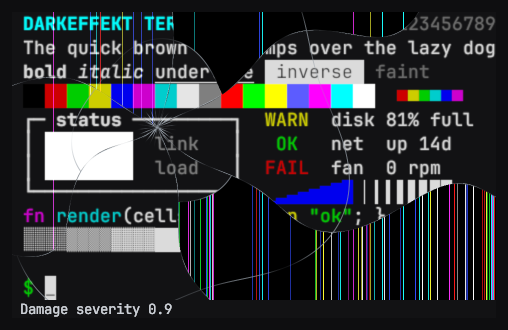
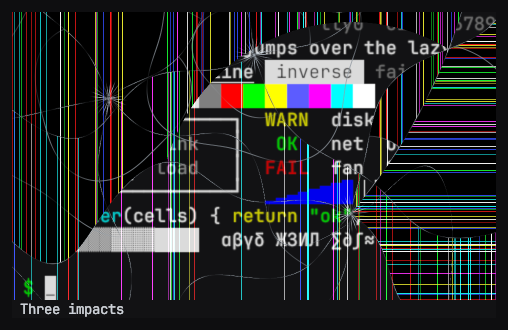
screen.DamageCell(col, row, 0.5f); // at a cellscreen3D.DamageFromRay(ray, 0.8f); // where a world ray landsscreen3D.DamageAtPoint(contact.point, 0.8f); // at a point on the surfacescreen.IsDamaged;screen.Repair();A screen shows up to TerminalScreenBase.MaxImpacts impacts, which is 4. One
more replaces the oldest.
The cracks are in the glass, so a material of your own can show them in
its surface: CrackTexture on the screen is a map over the display with
the lit edge, the shaded edge, and the glass normal, and the Terminal Screen
sub graph turns it into a Normal and a Smoothness. See
Themes and screen types. DamageTexture
is the companion map of the stuck lines and the dead share.
Damage stays until Repair(). Display is the screen’s DisplayCondition,
the state of the display itself, and its impacts are the ScreenImpact
values that draw the cracks: a position, a severity, and a seed. To restore
damage from a save, keep them and give each one back:
foreach (var impact in saved) screen.Damage(impact);Display on the screen in the Inspector sets damage a screen starts with.
Lighting the room
Section titled “Lighting the room”A screen is drawn unlit, so on its own it glows and lights nothing. Add a Terminal Screen Light to a Light in front of the glass, and that light takes the screen’s color and brightness every frame: a page of green text casts dim green light, a white flash lights the desk, and a screen that switches off, rolls, or glitches takes the light with it.
- Add a Spot or Point light as a child of the screen, just in front of the glass and facing out.
- Add Terminal > Terminal Screen Light to it. It finds the screen on a parent.
- Set Intensity to the light’s intensity for a screen that is white all over. Text lights a share of that, set by Knee.
| Setting | Does |
|---|---|
| Intensity | The light’s intensity when the whole screen is white |
| Knee | How soon the light levels off as more of the screen lights up. At 0 the light follows the lit share straight, so a full white screen is many times a screen of text; at the default 0.2 the two sit about four times apart |
| Saturation | 0 is white light, 1 the screen’s own color, and more is stronger color |
| Response | Seconds the light takes to follow a change; 0 follows at once |
| Interval | Frames between readings of the screen |
| Readback | Async trails the picture by a frame or two and costs nothing to wait for; Immediate matches it on the same frame, for recording |
It reads the screen’s DisplayTexture, so the theme, the screen type, and the
behaviors on this page are all in the light.
Repeatable frames
Section titled “Repeatable frames”Every behavior runs on unscaled time, so it carries on while the game is paused. While Unity captures at a fixed frame rate, as Recorder does, each frame counts as one capture frame, as it does for the cursor’s blink and for surface programs. The patterns come from the screen’s Signal Seed: the same seed, calls, and times draw the same frames. Give two screens different seeds to keep them from disturbing alike.
The pointer
Section titled “The pointer”- A roll, interference, and damage leave pointing alone: the pointer maps to the cell it would touch on an undisturbed picture.
- A screen that is off or switching off takes no pointer input, and
UvToCellreturns false.
Trying it in the demo shell
Section titled “Trying it in the demo shell”The Demo sample’s shell has a command for each behavior, in two groups:
screen for the screen as a prop, and signal for what it receives. Either
word alone lists its commands.
| Command | Does |
|---|---|
screen power |
Switches the screen off and back on |
screen vsync roll 0.6 |
Rolls the picture at that speed |
screen vsync hold |
Holds the picture where it is |
screen vsync once |
Rolls through one frame |
screen vsync lock 0.5 |
Recovers over that many seconds; with no number, at once |
screen damage, screen damage 10 5 0.8 |
Cracks the panel at the center, or at a column and row, with a severity |
screen repair |
Clears the damage |
screen reset |
Clears every effect, the signal too, and switches the screen on |
signal noise 0.2 |
Sets the interference level for 5 seconds |
signal noise 0.2 30, signal noise 0.2 0 |
For that many seconds; 0 stays until signal noise 0 |
signal scramble 0.8 |
Scrambles the picture at that level for 5 seconds; a second number sets the time as for noise, and a third how far the color stays |
signal vhs 0.5, signal digital 0.5 |
A worn tape, or a damaged digital stream, as for noise |
signal glitch 0.5 0.8 |
A burst for that many seconds at that strength |
In the Demo scene, F3 does what screen reset does.
ScreenShellCommands.AddTo(shell, screens) adds the same commands to a demo
shell of your own.